
Best Backup Solutions for Small Business 2026: Cloud and Local
It was a Tuesday morning when my friend Marco called me, voice shaking. His small architecture firm had been hit by ransomware overnight. Every project file, every CAD drawing, every invoice — locked. He had an old external hard drive sitting on his desk, but the last backup was from six months ago. Half a year of work, gone. He asked me what to do, and the silence on the line after I told him the options was heavier than any words. The truth is, a backup strategy isn’t just an IT checkbox. It’s the difference between a bad week and a closed business. In 2026, with threats multiplying and data growing, picking the right backup solution is one of the smartest moves you can make. So let’s walk through what works, what doesn’t, and how to protect the work you’ve poured your life into.
The Moment You Realize You Needed a Backup
Most small business owners don’t think about backups until something breaks. A laptop gets stolen from a car. A power surge fries the office server. An employee accidentally deletes the entire client database. And suddenly, you’re facing a recovery bill that could buy a small car. I’ve seen it happen to a bakery that lost all its custom cake designs. To a therapist who lost years of patient notes. The common thread wasn’t lack of care. It was thinking that a simple solution would be enough.
But backups are more complex than they used to be. It’s not just about copying files anymore. You need protection against ransomware that encrypts your backups too. You need version history so you can roll back to before someone made a mistake. And you need to be able to restore quickly because downtime costs more than you think. A café losing its ordering system for a day might lose thousands in sales. The real question isn’t whether you can afford a good backup system. It’s whether you can afford not to have one.
Common Backup Mistakes Small Businesses Make
Before we look at solutions, it helps to know where most people trip up. I’ve talked to dozens of business owners, and the same patterns keep appearing. First, the “set it and forget it” mentality. People install a backup tool, see the green checkmark, and never test if it actually restores. A backup you can’t recover is just wasted hard drive space. I once helped a retail store that had been backing up for two years, only to discover the backup files were corrupted the whole time. Nobody had run a test restore.
Second, keeping the backup connected to the same network as the main data. If your external drive is plugged into the computer that gets infected with ransomware, guess what happens? The malware encrypts the backup too. It’s like storing the spare key under the doormat. Third, relying on a single backup method. Hard drives fail. Cloud services have outages. A dropped laptop can destroy both the original and the backup if they’re in the same bag. Finally, forgetting about security on the backup itself. An unencrypted backup drive left in a drawer is a privacy breach waiting to happen if someone breaks in.
Cloud Backup vs. Local Backup: What’s the Difference?
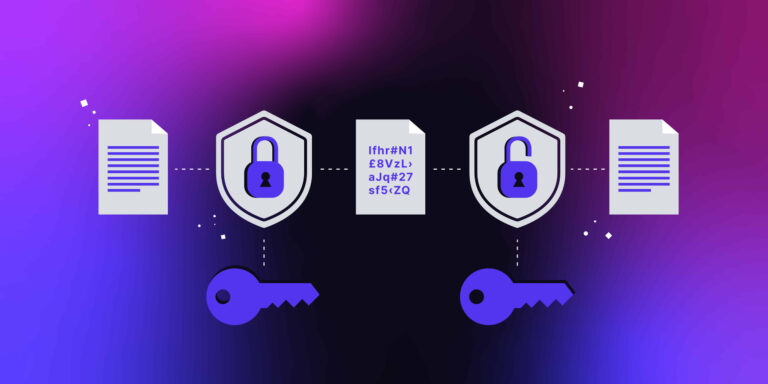
At its core, cloud backup means your data is stored on servers in a data center somewhere, accessible over the internet. Local backup means it’s on a physical device you control, like an external hard drive or a network-attached storage unit sitting in your office. Both have their strengths, and in 2026, the smartest approach often blends them together.
Cloud backup shines because it’s off-site by nature. If your office floods or catches fire, your data survives in a server miles away. It’s also convenient. Backups can run automatically in the background, even when you’re not thinking about it. The downside is speed. Restoring a terabyte of data over a cable internet connection can take days, not hours. And if you stop paying the subscription, you lose access. Local backup, on the other hand, is fast. You plug in a drive and restore in minutes. But it’s vulnerable to physical disasters and requires manual effort to keep off-site copies. The best businesses use both, syncing local speed with cloud safety.
Best Cloud Backup Solutions for Small Business in 2026
The market is crowded, but a few names consistently rise to the top for small teams. I’ve tested these based on ease of use, security, pricing, and recovery speed. Here’s what stood out.
Backblaze Business Backup
Backblaze has been a favorite of mine for years because it doesn’t try to be fancy. It does one thing and does it well: continuous, unlimited backup of your computers to the cloud. The pricing is dead simple. You pay per computer, and there’s no cap on storage. For a graphic design studio with massive files, that’s a lifesaver. The version history keeps file snapshots for up to one year, so you can grab last month’s draft if needed.
The restore process is where Backblaze gets clever. You can download files directly, or they’ll mail you a hard drive with your data on it. That overnight shipping option has saved more than one business from a weekend of frustration. Security is solid, with encryption both in transit and at rest, and you can set a private encryption key that even Backblaze can’t unlock. The trade-off is that it’s primarily a computer backup, not a server backup. If you run a Windows Server with SQL databases, you’ll need their B2 cloud storage with a separate backup tool. But for laptops and desktops, it just works. The mobile app lets you view files from your phone too, which is handy when a client calls and you need a contract on the go.
Carbonite Safe for Small Business
Carbonite feels like the veteran in the room. It’s been protecting business data for a long time, and the 2026 version has polished the rough edges. The hybrid approach is what sets it apart. You can back up to their cloud and simultaneously to a local drive. That means fast restores from the local copy and disaster recovery from the cloud if the office burns down. The dashboard is straightforward, giving you a quick view of which devices are protected and when the last backup happened.
Carbonite includes automatic ransomware detection that flags suspicious encryption activity and stops the backup to prevent the infection from spreading. The server backup option supports Exchange, SQL, and even Hyper-V virtual machines, which covers a lot of small medical offices and law firms. Pricing is tiered by the number of computers and servers, and it’s not the cheapest on the list, but the support team is knowledgeable and available by phone. One frustration is that the initial backup can take forever if you have a slow upload connection. Carbonite offers a seeded backup service where they ship you a drive to load your data first, but it costs extra.
Acronis Cyber Protect
Acronis has evolved from a backup tool into a full cyber protection suite. For a small business worried about both backup and security, it’s an attractive two-for-one. The backup engine supports nearly everything: physical machines, virtual servers, Microsoft 365 mailboxes, even mobile devices. The image-based backup captures your entire system so you can restore it onto a completely different computer, operating system and all. That’s powerful when a machine dies and you need to get back to work immediately.
What makes Acronis special is the integrated anti-malware and anti-ransomware protection. It watches for suspicious process behavior and can automatically restore affected files from a backup. Imagine ransomware encrypting your documents, and Acronis quietly undoing the damage while you’re on a coffee break. The cloud management console lets you monitor all endpoints from one screen. The pricing is higher than pure backup tools, but if you were going to buy both backup and security separately, it can save money. The main downside is complexity. The software packs so many features that first-time users might feel lost in the menus.
IDrive Team
IDrive has been quietly building a loyal following, and its team plan is a standout for very small groups. You get a shared pool of storage instead of paying per device. For a five-person team that collectively uses 2TB, it’s cost-effective and flexible. The backup client handles PCs, Macs, servers, and even external drives connected to those machines. The snapshot feature keeps up to 30 previous versions of each file, which is generous enough to recover from accidental deletions weeks after the fact.
One feature I genuinely love is the IDrive Express service. Once per year, they’ll ship you a physical hard drive to do a full backup, free of charge. You send it back and they upload it directly to their data center, avoiding the pain of a months-long initial upload. The interface is clean and easy to navigate, and the mobile app lets you back up your phone’s photos and contacts to the same account. Security is tight, with client-side encryption and an optional private key. The weak spot is speed during peak hours, though it’s improved recently. Also, the Linux support is limited to basic backup scripts, which might disappoint developers.
Best Local Backup Solutions for Small Business in 2026
While the cloud gets the headlines, local backup remains essential for speed and control. Here are the options I’d trust with my own data.

A Reliable NAS: Synology DiskStation with Active Backup for Business
A Network Attached Storage device is basically a small server that sits in your office, packed with hard drives, designed solely for storing and protecting data. Synology has dominated this space, and their Active Backup for Business software is free with the device. It backs up your PCs, servers, and even your Microsoft 365 and Google Workspace data to the NAS. Because it’s on your local network, restores happen at gigabit speeds, not internet speeds.
The NAS itself can be configured with multiple drives in a RAID setup, so if one drive fails, your data is still intact. Synology’s Hyper Backup feature can then sync that local backup to the cloud, giving you a true hybrid solution. The interface feels like a full operating system, and you can add packages for surveillance cameras, email servers, and more. For a small law firm that can’t afford downtime, a Synology NAS is a solid foundation. The upfront cost is several hundred dollars plus drives, and you’ll need a bit of technical comfort to set it up. But once it’s running, it hums along quietly in the corner. Just remember to store an off-site copy somewhere, because a NAS can still burn in a fire.
External Drive Software: EaseUS Todo Backup
Not every small business needs a network device. A solo consultant or a freelance writer might just want a simple, powerful program to clone their laptop to an external SSD. EaseUS Todo Backup is the tool I recommend for that. It creates full disk images, file-level backups, and even bootable rescue media so you can recover your entire system after a crash without reinstalling Windows.
The scheduling is flexible, letting you run backups hourly or on specific triggers like a USB drive being plugged in. It supports differential and incremental backups, which means after the first full backup, only changed data gets copied. This saves time and space. The software can also back up to a network location or cloud storage, blurring the line between local and remote. The free version covers the basics, while the paid home office license adds encryption, command-line scripting, and Outlook email backup. The interface is a bit dated, and the upselling prompts in the free version can be annoying. But for a straightforward local safety net, it gets the job done without drama.
Windows Server Backup (for Those Already Running a Server)
If your business already has a Windows Server for file sharing or Active Directory, you have a capable backup tool built right in. Windows Server Backup can create full server images and schedule them to an external drive or network share. It’s not flashy, and the recovery process is a bit manual compared to third-party tools, but it’s free and reliable when configured correctly. I’ve used it to restore a dental office’s patient management server after a hard drive failure. The whole process took an evening, but it worked.
The key is to make sure the backup destination is a separate physical disk and that you regularly test the restore. Too many people enable it and then forget it. Pair Windows Server Backup with an off-site copy, perhaps by rotating two external drives and keeping one at the owner’s house, and you have a budget-friendly local strategy.
How to Build a Bulletproof Backup Strategy
Picking the right tool is only half the battle. The other half is how you use it. The most cited rule in backup is 3-2-1. Keep three copies of your data, on two different media types, with one copy stored off-site. In practice, that could mean your working files on your computer, a local backup on a Synology NAS, and a cloud backup with Backblaze. That way, no single disaster can wipe out everything. I’ve seen this rule save a boutique hotel that had their on-site server stolen but recovered everything from the cloud the same night.
Versioning is equally important. If ransomware encrypts your files and your backup tool overwrites the good copy with the encrypted one, you’re in trouble. Make sure your backup keeps historical versions for at least 30 days. Test your restores quarterly. It sounds tedious, but a surprise drill once every few months can uncover a corrupt backup or a missing password before it becomes an emergency. Also, secure your backup credentials with a password manager and enable multi-factor authentication on cloud accounts. A strong backup can be undone by a weak password.
Encryption matters too. Local backup drives should be encrypted with BitLocker or FileVault so a stolen drive doesn’t leak client data. Cloud backups should use private encryption keys you control. The inconvenience of managing keys is nothing compared to the cost of a data breach. Finally, document a simple recovery plan. Write down the steps someone would follow if you’re not there. It doesn’t have to be long. Just a page that says where the backups are, how to access them, and who to call for help. Your future self will be grateful.
Best Backup Solutions for Small Business 2026: The Right Fit for Your Operation
So which path do you take? If your team is mostly laptops and you want effortless protection, Backblaze is a great starting point. It’s affordable, unlimited, and requires no maintenance. For businesses that need both local speed and cloud safety, Carbonite or a Synology NAS with cloud sync gives you that hybrid confidence. Acronis makes sense if you want to merge backup with cybersecurity, killing two needs with one budget. And for very small teams watching every dollar, IDrive offers flexible storage at a fair price. If you’re a solo operator with a single machine, EaseUS Todo Backup and an external SSD might be all you need.
Think about what you stand to lose. Not just the data, but the time, the reputation, the clients who won’t wait. A solid backup strategy feels like an expense until the moment it isn’t. Marco, the architect I mentioned, now has his files on a NAS, backed up nightly to the cloud, and he tests the restore every first Friday of the month. He told me he sleeps better now. And in 2026, with everything else trying to keep you up at night, that’s worth every penny.