
Best MFA Apps for Business Teams in 2026: Ranked and Reviewed
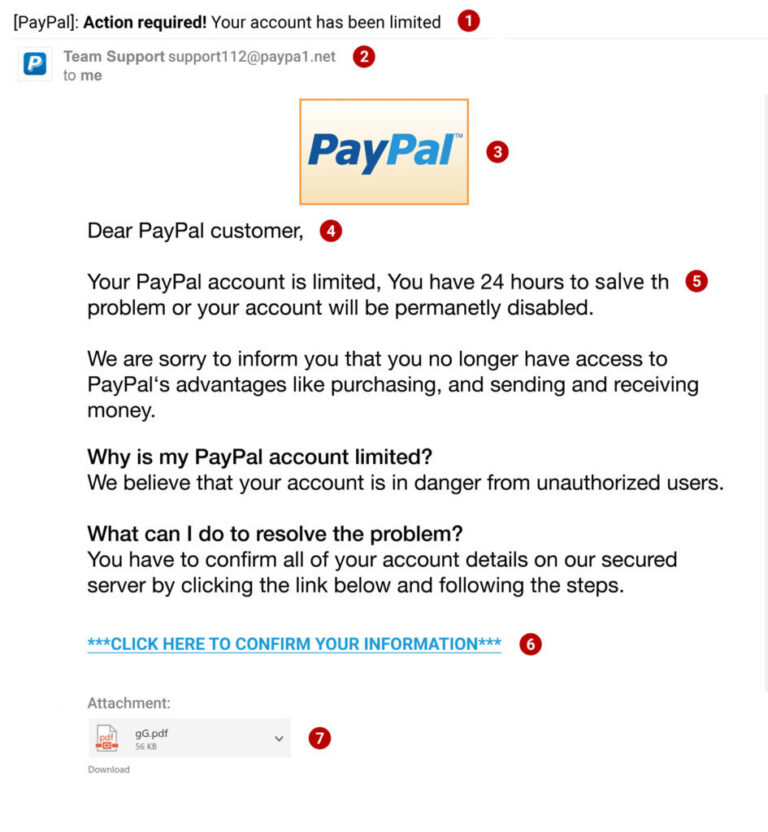
Last month, I watched a small marketing agency owner almost lose access to her entire client database because of a single stolen password. A phishing email, a moment of distraction, and suddenly someone in another country was trying to transfer funds. What stopped them? A prompt on her phone asking if the login was legitimate. She tapped “no,” blocked the intruder, and went on with her day. That little interruption saved her business. Multi-factor authentication is no longer a nice extra for the paranoid few. It’s the lock on the door that actually keeps the bad guys out when they have your key. But picking the right MFA app for a team is trickier than just downloading Google Authenticator and hoping for the best. I’ve spent weeks testing what works when you have employees who aren’t tech-savvy, when you need to enforce policies, and when you just want people to stop ignoring the prompts. Here’s everything I learned.
Why Your Business Can’t Skip MFA in 2026
The password problem isn’t going away. People reuse them across work and personal accounts. They pick simple ones because complex passwords are annoying to remember. And no matter how much training you do, someone will type their credentials into a fake login page that looks exactly like the real thing. MFA adds a second factor, something you have or something you are, so even a stolen password becomes useless on its own.
In 2026, the threats have gotten uglier. Attackers use AI to craft personalized phishing messages that reference your actual vendors and recent conversations. They buy password dumps from data breaches and try them against business systems automatically. Ransomware gangs specifically target small businesses because they know backups are often weak and the owners will pay to survive. MFA stops most of these attacks cold. Microsoft’s own data says it blocks over 99% of automated credential attacks. That’s not a small improvement. It’s the difference between a stressful afternoon and a company-ending disaster. And yet, many small businesses still haven’t turned it on because they think it’ll slow everyone down. The reality is that modern MFA apps are fast, and the tiny friction is nothing compared to the chaos of a breach.
How We Evaluated These MFA Apps
I didn’t just look at the app’s design. For a business team, you need a lot more than a code generator. I focused on the admin experience first. Can you easily onboard a new hire? Can you remove access instantly when someone leaves? Does the dashboard show you who’s enrolled and who’s been ignoring setup reminders? Those management features turn MFA from a personal tool into a company-wide shield.
Security was next. I checked whether the app supports phishing-resistant methods like push notifications with number matching, not just easily tricked SMS codes. I looked at the encryption standards and whether the vendor has a track record of swift response to vulnerabilities. Then came user experience. If the app confuses your team, they’ll find ways around it, and you’re back to square one. Finally, I considered pricing and integration with the tools you already use. A standalone MFA app that doesn’t talk to your Microsoft 365 or Google Workspace is just extra work. The best ones fit into your existing workflow like they belong there.
1. Cisco Duo: The Gold Standard for Team MFA
Cisco Duo is the name most IT people mention first, and for good reason. It’s been around long enough to polish the rough edges, and the 2026 version is as smooth as it gets. The app itself is clean, fast, and doesn’t bury the approve button behind menus. But the real power lives in the admin panel.
What Makes Duo Stand Out
Duo’s strongest asset is its flexibility. You can protect VPNs, cloud apps, on-premise servers, and even workstations at login. The push notification is instant, and number matching prevents accidental approvals. Your employee sees a three-digit code on the login screen and taps the matching number on their phone. It’s simple and nearly eliminates push fatigue attacks. The device health check feature is a gem. It can verify that a phone has a screen lock enabled and is running an up-to-date OS before granting access. For a law firm or accountant handling sensitive data, that’s a serious layer of defense.
The dashboard gives you a real-time view of every device enrolled, their security posture, and any failed login attempts. Creating policies is straightforward. You can require MFA only when people log in from new locations, or enforce it every single time. The integration list is enormous, covering everything from Salesforce to custom apps via LDAP. The free tier protects up to 10 users forever, which is perfect for a tiny startup testing the waters. Paid plans add advanced policies, SSO, and phone support. The mobile app works offline for generating codes, so a spotty connection won’t lock anyone out.
Where Duo Could Improve
The pricing can surprise you if you grow fast. Once you pass the free tier, costs are per user per month, and advanced features like risk-based authentication jump you to a higher plan. For a team of fifty, the annual bill isn’t trivial. Also, the initial setup for on-premise servers requires a bit of technical confidence. You might need a step-by-step guide or a consultant to get the application proxy running. The app itself is great, but some users complain the push notification prompt sometimes arrives a few seconds after the login attempt, leading to confusion. And while Duo offers SMS and phone call backups, those methods are less secure, and I wish they’d push harder to discourage them.
2. Microsoft Authenticator: The Obvious Choice for Microsoft 365 Shops
If your business runs on Microsoft 365, Outlook, Teams, and OneDrive, then Microsoft Authenticator feels like a built-in feature you forgot to turn on. It’s deeply integrated, free, and already installed on many employees’ phones. The experience is seamless when everything clicks.
The Good Stuff
The passwordless sign-in is brilliant. Instead of typing a password and then approving a notification, you can log in using just your phone with biometric approval. The app turns your phone into the credential itself. This eliminates phishing risks because there’s no password to steal. The setup wizard inside the Microsoft 365 admin center walks you through enabling MFA for your whole organization. You can require the app for everyone, block legacy SMS authentication, and get reports on who hasn’t enrolled yet.
The number matching feature, which Microsoft calls “number verification,” is enabled by default and blocks accidental approvals. The app also supports OATH codes for third-party accounts, so you can use it for services outside Microsoft too. Recent updates added a clean dashboard inside the Teams admin center, letting you manage authentication methods without switching portals. For a small business already paying for Microsoft 365 Business Premium, this is included. No extra bill, no separate vendor. The app itself is fast, the fingerprint unlock is smooth, and account recovery through the Microsoft account is relatively painless if someone gets a new phone.
What’s Less Than Perfect
The reliance on Microsoft accounts can be a double-edged sword. If a user loses access to their Microsoft account, regaining entry involves a support process that can take time. And while the app works great within the Microsoft ecosystem, third-party integration is more limited than Duo. Yes, you can add generic TOTP codes, but there’s no central policy to enforce MFA on non-Microsoft apps. Also, the admin settings are scattered across different Azure AD and M365 admin screens, which can be confusing. You might think you’ve enforced MFA for everyone, only to find a legacy portal doesn’t respect the policy. Some small businesses still cling to older Office 365 plans that don’t include the advanced conditional access features, so the protection is only as strong as the base settings allow. The app also has a habit of occasionally asking users to re-authenticate for no clear reason, which sparks minor frustration.
3. Okta Verify: Powerful, But Built for the Bigger Picture
Okta Verify is the authentication app tied to the Okta identity platform. It’s sleek, minimal, and fast. But unlike Duo or Microsoft Authenticator, it really only makes sense if you’re already using Okta as your identity provider. On its own, it’s a polished TOTP and push notification app. Inside the Okta ecosystem, it becomes something much more.
Key Advantages
The speed of push notifications is impressive. Tapping approve feels almost instant. The app supports biometric unlock and, crucially, it shows contextual details about the login attempt, like the location and the browser type. That little bit of information helps your team spot suspicious sign-ins at a glance. The integration with Okta FastPass enables passwordless access across configured apps. Your employees just use their phone and face scan, and they’re in.
For admins, the Okta dashboard is a command center. You set authentication policies that adapt based on risk. A login from the usual office IP might only need a push. A login from another country at 3 a.m. requires a biometric check and a one-time code. The reporting tools log every access event, which is invaluable for compliance. Okta connects to thousands of apps through pre-built integrations, and the workflow engine lets you automate things like disabling accounts after suspicious activity. If you’re a growing startup that needs fine-grained control, Okta gives you powerful levers. The app itself is lightweight and doesn’t drain the battery like some others.
The Downsides
Okta is not cheap, and the standalone Okta Verify app without the platform is just a basic authenticator. The real magic requires the full Okta Identity Cloud, which is priced per user and can become one of your larger software subscriptions. For a five-person consulting firm, the cost might feel hard to justify compared to the included Microsoft Authenticator. The setup complexity is also high. Deploying Okta properly takes time, and most small businesses will need outside help. The mobile app, while reliable, sometimes requires a periodic re-enrollment that confuses users. And because Okta is such a high-value target, it has faced security incidents in the past, though their response has been transparent and swift. Still, putting all your authentication eggs in one basket requires trust.
4. 1Password: When Your Password Manager Handles MFA Too
1Password isn’t just a place to store passwords anymore. For business teams, it now generates and autofills two-factor authentication codes directly from the same app. This changes the conversation about MFA entirely. Instead of pulling out a phone and opening a separate authenticator app, the code appears automatically when you need it.
The Seamless Experience
The biggest win here is user adoption. Your team already uses 1Password to log in to things. When they see the one-time code fill itself in, they don’t even think about MFA. It just happens. This eliminates the “I left my phone in the car” problem and dramatically speeds up workflows. Security-wise, it’s solid. The TOTP secrets are encrypted in your vault, protected by your master password and the secret key. Even if someone breached 1Password’s servers, they couldn’t access your codes without your credentials.
The admin controls in 1Password Business let you see who has MFA enabled on their vault, enforce policies for strong master passwords, and manage shared vaults where team credentials live. You can also use Duo or another third-party MFA to protect the 1Password account itself, creating a layered approach. The Watchtower dashboard flags accounts that support MFA but haven’t been set up yet, which gently nudges the team toward better habits. For a remote marketing team or a creative agency, 1Password centralizes everything and makes security feel almost invisible. The recovery process for a forgotten master password is well-designed, using a team administrator or an emergency kit.
Where It Has Limits
The MFA in 1Password is only as strong as the master password protecting the vault. If that gets compromised, an attacker gets everything. That’s why you absolutely must enable MFA on the 1Password account itself. Some security purists argue that storing passwords and TOTP codes in the same app creates a single point of failure. I understand the concern, but for most small businesses, the massive boost in convenience and actual usage outweighs the theoretical risk. Another limitation is that 1Password’s MFA support only works for TOTP codes, not push notifications or biometric-only logins to third-party services. It also requires that you’re using 1Password for all team members, which adds a subscription cost. If you already use another password manager, switching just for MFA doesn’t make sense.
5. LastPass MFA: A Solid Contender for LastPass Shops
LastPass has been through some turbulence over the years, but their business MFA offering remains a capable option for teams already invested in their ecosystem. The authenticator app, called LastPass Authenticator, integrates with the password manager and adds a separate factor that feels natural.
What It Does Well
The push notification is fast and includes number matching, so you’re not blindly approving logins. The one-tap approval is satisfyingly quick. The admin console lets you enforce MFA enrollment across your team, view reports on adoption, and set location-based policies. You can require a push notification only when someone logs in from outside the office network. That keeps friction low during normal work hours while tightening security when people travel.
LastPass MFA works with a range of third-party services beyond the LastPass vault, including VPNs, cloud apps, and identity providers. It supports SMS and call backups, though they can be disabled. The integration with LastPass password manager means users get a unified experience. When they log into a site, the password fills, and the MFA prompt pops up on their phone. The cross-platform support is strong, covering iOS, Android, and even smartwatches. For a business that’s been using LastPass for years, adding their MFA is a logical step rather than introducing a new vendor.
The Drawbacks
LastPass has dealt with high-profile security incidents, and while the MFA product itself is well-built, the brand trust has eroded for some. It’s something you’ll have to weigh. The pricing model can be confusing. MFA features are bundled into the higher-tier LastPass Business plans, so you can’t just buy the authenticator service standalone without the password manager. If your team uses a different password manager, LastPass MFA feels disconnected. The admin interface, while powerful, is not as modern or intuitive as Duo’s. Navigating between user management and MFA policies requires clicking through several menus. And the app occasionally gets stuck in a loop where it asks you to re-verify your identity after an update, which frustrates non-technical users.
6. JumpCloud Protect: Free MFA for a Modern Directory
JumpCloud Protect is the authenticator app from JumpCloud, a cloud directory platform that’s been quietly winning over small businesses tired of traditional Active Directory. The app is completely free, even without a paid JumpCloud subscription, which makes it a unique entry on this list. You can use it as a standalone TOTP and push notification app for any supported service.
Why It’s Worth a Look
The push notification experience is clean, with number matching and a simple approve or deny interface. The app requires biometric unlock by default, which adds a satisfying layer of security. Setup takes minutes. You download the app, scan a QR code from the JumpCloud admin portal, and you’re set. The admin dashboard lets you enforce MFA across your entire user base, reset authenticators when someone loses a device, and generate TOTP enrollment for other services.
What sets JumpCloud apart is the broader platform. If you use JumpCloud to manage user identities and device access, the Protect app becomes part of a unified security fabric. You can create conditional access rules that require MFA only when a user logs into a high-risk application or from a new device. The pricing is attractive because JumpCloud offers a free tier for up to 10 users, including the MFA functionality. Even for larger teams, the cost is competitive. The app is lightweight, updates regularly, and hasn’t given me any sync issues during testing.
Where It Falls Short
JumpCloud Protect is still the new kid, and it shows in a few areas. The third-party integration ecosystem is much smaller than Duo or Okta. You can protect your JumpCloud-managed apps, but connecting it to a random SaaS tool might require manual TOTP setup rather than a direct integration. The documentation is improving, but I still found gaps when I tried to set up a custom RADIUS connection. The app lacks a backup code option if push notifications fail, relying solely on the TOTP code, which can be a minor annoyance. And while the app is free, you’re encouraged to adopt the broader JumpCloud directory for the best experience. If you’re happy with your current directory setup, adopting JumpCloud just for MFA might feel like using a sledgehammer on a nail.
What to Consider When Choosing an MFA App for Your Team
The app you pick has to fit your actual workday, not just your security ideals. Start with the environment you already have. If your business lives in Microsoft 365, Microsoft Authenticator is the path of least resistance. It’s free, integrated, and already familiar to many. If you use a mix of cloud and on-premise tools, Duo’s vast integration catalog will save you endless headaches. For teams that want a single pane of glass for passwords and MFA, 1Password or LastPass can consolidate tools and reduce the number of apps people need.
Think about the user experience honestly. Security that people bypass isn’t security at all. If your team includes folks who struggle with technology, pick an app with simple push notifications and clear number matching. Avoid anything that requires manual code typing as the primary method, because it leads to frustration and workarounds. The recovery process matters too. When someone gets a new phone, how quickly can they regain access? A good MFA app has a clear recovery flow that doesn’t require a support ticket and a twenty-four-hour wait.
Finally, don’t ignore the admin side. You need to be able to see who has MFA enabled, who hasn’t, and enforce it without sending a hundred reminder emails. Reports that show suspicious login attempts give you early warnings. Pricing should be predictable. Per-user models are common, but watch for hidden costs when you add advanced policies or support. And test the product with a few users before rolling it out company-wide. The friction you discover in a trial is better than the rebellion you’ll face after a rushed deployment.
Which MFA App Is Right for Your Business?
So where does this leave you? If you want the most battle-tested, flexible option that will grow with you, Cisco Duo is the one. It’s not the cheapest, but it rarely lets you down. For the Microsoft-centric business that wants zero extra cost and deep integration, turn on Microsoft Authenticator and enforce it through your existing admin portal. It’s the easiest win you’ll ever have. If your organization already runs on Okta or plans to scale fast with complex access needs, Okta Verify paired with the platform is a powerful combination.
For teams that want to simplify their stack and make MFA almost invisible, 1Password’s built-in TOTP support is surprisingly effective and boosts actual usage rates. LastPass MFA makes sense if you’re already a LastPass Business customer and want to keep everything under one roof, but the trust factor is something to evaluate. And if you’re looking for a free, solid authenticator with a modern directory attached, JumpCloud Protect deserves a serious look.
Conclusion
Enabling MFA for your small business isn’t a technical luxury. It’s one of the most straightforward ways to stop the attacks that put companies out of business. The apps available in 2026 have come a long way from the clunky code generators of the past. They’re fast, intuitive, and often free. The hardest part isn’t picking the tool. It’s making the decision to enforce it and helping your team through the first few days. Once the habit forms, it becomes as natural as locking the office door at night. And when that phishing email inevitably lands in someone’s inbox, you’ll get the quiet satisfaction of knowing the second lock just saved everything you built.