How to Set Up Multi-Factor Authentication for Your Team
Passwords alone are no longer enough. You have heard that before, but maybe you put off doing anything about it because it sounded complicated or expensive. The truth is that setting up multi-factor authentication for your team is one of the simplest, most powerful security moves you can make. It stops nearly all automated attacks, it costs little to nothing, and your team will adjust faster than you expect. I want to guide you through the whole process, from picking the right type of MFA to handling the inevitable I lost my phone panic. By the end, you will have a clear, practical plan that fits your small business without making everyone miserable. Let us get into it.
Why Multi-Factor Authentication Is Non-Negotiable for Your Team
You might be wondering if MFA is really worth the hassle. I get it. Every extra step feels like friction, and friction annoys people. But consider what happens without it. A single reused password, leaked in some unrelated data breach, becomes the key to your entire kingdom. Your email, your client files, your bank accounts. All of it accessible because someone used the same password for your business login and a random forum from ten years ago. This is not a hypothetical. It happens every single day to businesses just like yours.
The Password Problem Nobody Talks About
We ask humans to create long, unique, random passwords for every account and then remember them all. That is impossible. So people cheat. They reuse passwords, they write them on sticky notes, they add an exclamation point at the end and call it a day. You have probably done it yourself. I know I have. Attackers know this too. They buy massive lists of leaked credentials for pennies and feed them into automated tools. Those tools try thousands of combinations across banking portals, email services, and cloud platforms. Without MFA, a hit is game over.
MFA breaks this entire attack chain. Even if a criminal has your password, they still cannot get in without the second factor. That second factor is usually something you have, like your phone, or something you are, like a fingerprint. It is a gate that stays shut regardless of how badly your password hygiene has slipped. The relief of knowing that a leaked password will not destroy your business is profound. It removes that low-level anxiety that hums in the background of modern work life.
How One Extra Step Blocks Almost Everything
The numbers behind MFA are staggering when you look at them. Microsoft has reported that MFA blocks over ninety-nine percent of automated credential attacks. Let that sink in. Not fifty percent, not eighty percent. Over ninety-nine percent. Enabling MFA is the cybersecurity equivalent of locking your front door. It stops the opportunistic thieves who are just checking for easy access. And the overwhelming majority of attacks on small businesses are opportunistic. They are not targeted, Oceans Eleven style heists. They are bots sweeping the neighborhood for unlocked windows.
When you set up MFA for your team, you move from the easy target column to the not worth the trouble column. Attackers will simply move on to the next business that did not bother. The time it takes to set up is a few minutes per account. The protection lasts indefinitely. The math is so lopsided in your favor that not enabling MFA is almost a business liability at this point. Insurance companies are starting to require it. Clients are starting to ask about it. Getting ahead of this trend positions you as a responsible partner.
The Different Flavors of MFA and Which to Choose
MFA is not one single thing. It comes in a few different forms, and some are more secure than others. The worst thing you can do is pick a weak method because it seemed easier, only to have attackers bypass it anyway. I want to give you an honest breakdown of the options so you can choose wisely for your team. The goal is to balance security with usability. Too much friction and your team will find workarounds. Too little security and you might as well not bother.
App-Based Authentication Is the Sweet Spot
For the vast majority of small businesses, an authenticator app on a smartphone is the perfect balance. These apps generate a short-lived, rotating code that you enter after typing your password. Google Authenticator, Microsoft Authenticator, and Authy are a few common names. The setup is straightforward. You scan a QR code with your phone, and from that moment on, the app produces codes that refresh every thirty seconds. No cell signal is needed, which is a big advantage over text messages.
The reason I push teams toward app-based codes is that they are free, they work offline, and they are significantly harder to intercept than SMS-based codes. A determined attacker can sometimes trick a phone carrier into redirecting text messages. That is called a SIM swap attack, and it is a real threat. With an authenticator app, the secret stays on the device itself. Even if someone hijacks your phone number, they do not get your codes. It is a small detail that makes a meaningful difference in your security posture.
Hardware Security Keys for Maximum Protection
If your business handles particularly sensitive information, or if you just want the strongest possible lock, hardware security keys are worth a look. These are physical devices, often small enough to fit on a keychain, that you plug into a USB port or tap against your phone. YubiKey is the most recognized brand in this space. The user experience is beautifully simple. After the initial setup, you just tap the key when prompted. No codes to type, nothing to memorize.
Hardware keys provide phishing-resistant protection that even authenticator apps cannot fully match. They verify the website you are logging into, so a fake login page cannot steal your credentials. For a small financial services firm, a legal practice, or a healthcare office, this level of assurance is incredibly valuable. The main downside is cost. Keys run about twenty to fifty dollars each, and you should have a backup. Also, people lose physical objects. But the security gain is substantial. I recommend keys for owners and admins at a minimum, even if the rest of the team uses apps.
Why SMS Codes Are Better Than Nothing but Not Great
Many online services still default to sending a text message with a code. It is convenient because almost everyone has a phone number and no app install is required. If SMS is the only option a particular service offers, enable it. It is vastly better than no MFA at all. Something is always better than nothing in this game. But I would not choose SMS as my primary method if other options exist. The vulnerabilities around SIM swapping and social engineering are real enough that you should treat text-based codes as a stepping stone, not a permanent home.
Let your team know that SMS is the fallback, not the standard. If a service offers an authenticator app or a hardware key, use those instead. Over time, the industry is moving away from SMS-based verification because of its weaknesses. You might as well get your team comfortable with the more modern methods now. The transition is smoother when you lead with the better option from day one rather than trying to upgrade everyone later.
Step-by-Step Setup for Your Most Critical Accounts
You do not need to enable MFA on every single account overnight. That is a recipe for overwhelm. Start with the accounts that would cause the most damage if breached, then expand from there. The order matters because these first wins give you the biggest security boost for the least effort. Your team will also see the pattern and get used to the process before you roll it out more broadly.
Email Accounts Come First, No Exceptions
Your email is the skeleton key to your business. Password resets for almost every other service flow through email. If an attacker gets into your email, they can reset your bank password, your cloud storage password, your social media accounts. Everything. Turn on MFA for every business email account before you do anything else. The major providers like Google Workspace and Microsoft 365 make this extremely simple. In the admin console, you can enforce MFA policies for your entire team with a few clicks.
Walk your team through the setup one person at a time if your group is small. Show them how to install the authenticator app on their phone and scan the QR code. Have them log out and log back in to confirm it works. This hands-on approach eliminates the confusion that often leads to abandoned setups. Give them ten minutes of your time now to save days of disaster later. The effort is trivial compared to the protection it buys.
Financial and Banking Platforms
Your business bank account, your payment processor, your accounting software. These are the arteries of your company. Money flows through them, and money is what attackers want. Check each platform for MFA options. Many banks now support app-based authentication, though some still lag behind with SMS only. Enable whatever is available. If your bank offers nothing beyond a password, and I hate to say it, consider switching to one that takes security seriously. In 2026, there is no excuse for a financial institution to skip MFA.
For payment processors like Stripe, PayPal, or Square, MFA is usually well-supported. Turn it on immediately. Add an extra layer for administrative accounts by requiring a hardware key if the platform allows it. The tiny cost of a security key is pocket change compared to the damage of a compromised payment account. Your future self will thank you for taking these thirty minutes. I promise.
Cloud Storage and Document Platforms
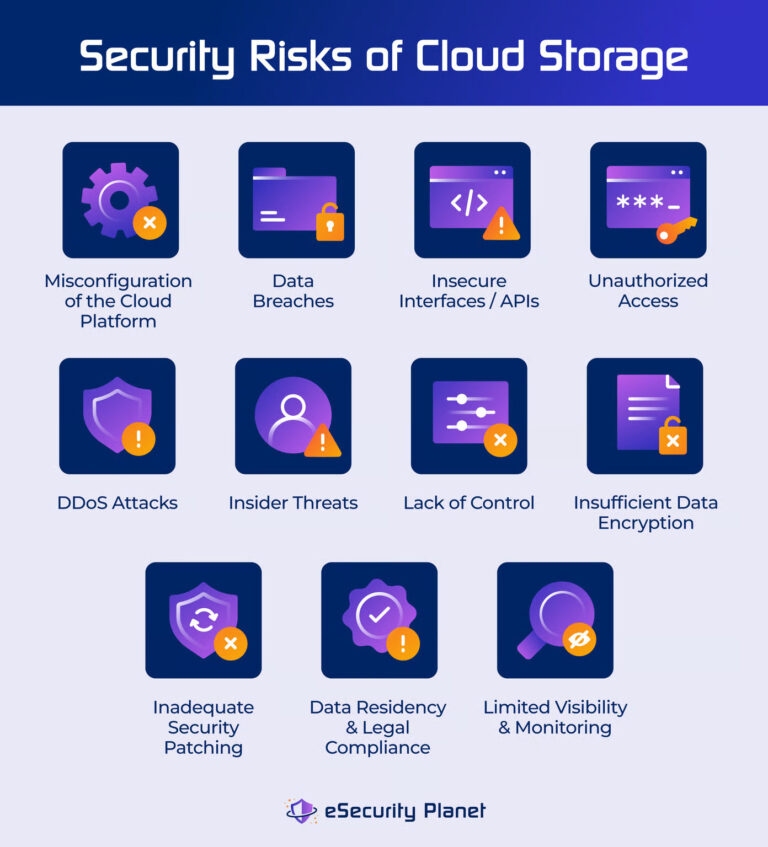
Your shared drives hold client documents, contracts, intellectual property. The places where your team collaborates daily are juicy targets for ransomware gangs who love to encrypt shared files. Google Drive, Dropbox, OneDrive, Box. They all offer MFA. Turn it on. While you are in the settings, check the sharing permissions too. MFA protects the login, but overly broad sharing can still leak data. Think of MFA as the lock on the front door. Sensible sharing settings are the lock on the filing cabinet inside.
If your team uses an industry-specific cloud platform, check its security settings as well. Law firms using Clio, construction companies using Procore, restaurants using their POS backend. Every platform that holds business data deserves MFA. It is easy to forget about these niche tools, but attackers love them precisely because they are often overlooked. Make a list of every service your team logs into. Start ticking them off one by one.
Rolling Out MFA Without Frustrating Your People
The technical setup is only half the battle. The human side matters just as much. Roll MFA out poorly, and your team will resent it. They will find clumsy workarounds or complain until you turn it off. Roll it out thoughtfully, and it becomes as normal as locking the office door at night. The difference is in how you communicate and support the change.
Explain the Why Before the How
Before you send out a single setup link, gather your team and talk about why you are making this change. Tell them a short story about a real business that lost everything because of a compromised password. You do not need to be dramatic. Just be honest. Explain that this extra step protects their paychecks, their client relationships, and the company they helped build. When people understand the purpose, the minor inconvenience of a code feels meaningful instead of annoying.
Frame MFA as an act of team care. You are not imposing a rule from above. You are giving everyone a shield. Make it clear that you will be patient during the transition, that mistakes are okay, and that nobody will be punished for needing help. This emotional framing removes the defensive reaction some employees have toward new security measures. They stop seeing it as surveillance or distrust and start seeing it as protection. That shift in perspective is everything.
Offer One-on-One Setup Help
Some people will breeze through the setup without any assistance. Others will freeze the moment they see a QR code. Both responses are normal. Block out some time to sit with anyone who needs help. Walk them through installing the app, scanning the code, and testing the login. The five minutes you spend with a hesitant employee saves you the hours of headache later when they lock themselves out and miss a deadline. Patience here is an investment in smooth operations.
Make sure everyone has backup codes stored somewhere safe. Most services provide a set of one-time use backup codes during MFA setup. Print them out, tell your team to store them in a desk drawer or a secure note at home. These codes are the safety net. If a phone is lost, stolen, or dropped in a lake, the backup codes let them regain access immediately. Emphasize this point repeatedly. Knowing there is a fallback reduces the anxiety that makes people resist MFA.
Set a Hard Deadline but Be Flexible on the Path
Give your team a clear deadline for when MFA will be mandatory. Something like by next Friday, all email accounts must have MFA enabled. A deadline creates accountability. Without one, the setup languishes in the someday pile. Be firm but fair. If someone has a legitimate reason they cannot meet the deadline, like a broken phone, work with them individually. The goal is protection, not punishment.
Once the deadline passes, enforce the policy. Technical controls help here. Platforms like Google Workspace and Microsoft 365 allow you to require MFA for all users. If someone has not set it up, they get prompted immediately upon login and cannot proceed until they complete the setup. This automated enforcement removes you from the role of nagging enforcer. The system does the reminding. It is polite but insistent, and it works.

Handling Lost Phones and Other Common Headaches
Life happens. Phones break, get lost, or take an unexpected swim. When a team member loses access to their MFA device, they need a fast path back to work. If that path does not exist, the result is a very frustrated employee and a very stressed owner. Plan for these situations in advance. The policy you write today prevents the panic of tomorrow.
The Backup Code Solution Every Team Needs
I mentioned backup codes earlier, but this point deserves its own spotlight. Every time you set up MFA on an account, the service will offer you backup codes. Save them. Do not skip this screen in a hurry. These are single-use codes that bypass MFA entirely. They are designed for emergencies. Your team members should each have a secure, offline copy of their backup codes. A printed sheet in a locked desk drawer, a secure note in a password manager, or a handwritten card kept at home.
Test a backup code after setup to make sure it works. The peace of mind this creates is enormous. When someone loses their phone on a Friday night, they do not have to wait until Monday to access their email. They grab a backup code, log in, and immediately set up MFA on their new device. The disruption is measured in minutes, not days. This one habit turns a potential crisis into a minor inconvenience. I cannot stress it enough.
Account Recovery Procedures for Administrators
As the business owner or IT person, you need a documented process for restoring access when an employee is truly stuck. Maybe they lost their backup codes and their phone simultaneously. It happens. Your procedure should involve verifying their identity through another trusted channel, like a video call or an in-person meeting, before issuing a temporary bypass or helping them reset MFA. This prevents an attacker from calling you, pretending to be an employee, and asking you to disable MFA on their account.
Most cloud platforms give administrators the ability to revoke a user’s MFA settings and force a re-enrollment. Use this power carefully. Confirm the person’s identity through at least two methods before taking action. Write down the steps so any trusted manager can follow them if you are not available. This simple admin playbook costs nothing to create and prevents both lockouts and social engineering attacks.
Travel and Areas with Poor Connectivity
One concern that often surfaces is what happens when traveling internationally or working from a location with spotty cell service. Authenticator apps work offline, which is a major advantage. The time-based codes do not require an internet connection. As long as the phone has power and the correct time, the codes work. Mention this to your team. It eases the worry of being locked out on a business trip.
Hardware keys work offline as well. For remote workers in rural areas, a physical key is a great solution because it does not depend on a phone battery or a mobile signal. It just works when plugged in or tapped. Acknowledge these edge cases in your rollout communication. Showing that you have thought about their real-world situations builds goodwill and trust.
Locking Down the Exceptions: Contractors and Shared Accounts
MFA gets a little trickier when you move beyond full-time employees with company-issued phones. Contractors, freelancers, and shared departmental accounts introduce complexity. But skipping MFA for these accounts opens a back door that attackers will find. You need practical rules that cover these scenarios without making collaboration impossible.
Requiring MFA for External Collaborators
If you give a contractor access to your email system, your project management tool, or your file storage, they must use MFA. There is no negotiating this. Their security posture affects your security posture. Most platforms allow you to invite external users and enforce MFA policies on them as well. Take advantage of those settings. If a contractor refuses or claims they cannot use MFA, that is a red flag. Consider whether the risk is worth the convenience.
Be diplomatic in how you present this requirement. Explain that it is a standard policy for everyone who touches business data, including yourself. It is not about not trusting them. It is about protecting the shared environment. Most reasonable contractors will understand and comply. The ones who push back aggressively might not be the right long-term partners. Your policy protects your business, and the right collaborators will respect that.
Handling Shared Team Accounts Securely
Some small businesses use a shared email address like info at company dot com or a shared social media login that multiple people need to access. Sharing a password is already a bad idea, but sharing an MFA code is even messier. You can text the code around or shout it across the office, but that defeats the purpose. There is a better way. Many password managers now include built-in authenticator features that generate MFA codes and store them alongside the shared login entry.
Set up a shared folder in your password manager for these team accounts. Store the password and the MFA secret there. Anyone with access to that folder can get the current code when they need to log in. This keeps the MFA protection intact without requiring a single person’s phone to be the gatekeeper. It is not quite as secure as individual MFA enrollment, but it is a thousand times better than no MFA at all. For small teams with limited budgets, it strikes a good balance.
Making MFA Stick Long-Term
The initial rollout is a big milestone, but the real challenge is maintaining the habit. New accounts get created. Employees come and go. MFA settings can get turned off accidentally or intentionally. A little bit of ongoing attention keeps your defenses strong. Neglect them, and cracks form.
Adding MFA to the Onboarding Checklist
From this point forward, MFA setup should be a standard part of hiring a new team member. Before they even get their laptop, set up their email account with MFA enforced. Walk them through it on their first day. Give them the same conversation about why it matters and how to use backup codes. This makes MFA a normal part of working here, not a weird extra step that gets questioned.
The same goes for new software. When the team adopts a new tool, check for MFA settings during the trial period. Enable it before the tool goes into production use. This proactive habit prevents the slow accumulation of unprotected accounts. You would be amazed how many small businesses set up a new project management app, invite everyone, and never check the security settings. A few minutes during setup saves a scramble later.
Regular Audits Keep Everyone Honest
Schedule a recurring reminder on your calendar every quarter to audit MFA across your critical services. The audit does not need to be a formal affair. Spend thirty minutes logging into each admin console and checking that MFA is still enabled for all accounts. Look for any new users who might have slipped through without completing setup. Check if any service has changed its MFA options and now offers a stronger method you can switch to.
This audit also gives you a chance to clean up old accounts. That former employee whose account you deactivated but did not delete, that contractor whose project ended six months ago. Every lingering account is a potential entry point. Revoke access you no longer need, and ensure the accounts that remain are protected. It feels good to tidy things up, and your security posture gets sharper each time you do it.
Celebrating Wins and Learning from Mistakes
When a team member spots a phishing email and reports it, thank them publicly. When the quarterly audit comes back clean, acknowledge the collective effort. Security is a team sport, and positive reinforcement keeps people engaged. If someone does get locked out or clicks a bad link, handle it with grace. Use it as a teaching moment, not a shaming session. A culture of blame drives problems underground. A culture of learning surfaces them early, when they are still manageable.
Over time, your team will internalize MFA as just part of how work gets done. They will not think twice about grabbing their phone to approve a login. New hires will pick up the habit from watching their colleagues. You will have woven a simple thread of security into the fabric of your business, and that thread will hold strong when the inevitable attack attempts come knocking.
Conclusion
Setting up multi-factor authentication for your team is not a massive project. It is a series of small, intentional actions that add up to a fortress-like defense against the most common cyber threats. Start with email and financial accounts, choose app-based authentication or hardware keys over SMS where possible, and walk your people through the process with patience and clear explanations. Plan for lost phones with backup codes and simple admin recovery procedures. Extend the protection to contractors and shared accounts, and then build the habit into your onboarding and quarterly reviews.
The whole thing might take a few afternoons of focused effort. The return on that investment is your business staying out of the breach headlines, your client data staying private, and your peace of mind remaining intact. Passwords fail. People make mistakes. But with MFA standing guard, those failures do not have to become disasters. Lock your digital doors today. Your team, your clients, and your future self will all be grateful you did.